
How to Search SAM.gov: Contracts, Entities and Exclusions
By GoNoGo editorial teamLast checked October 13, 20269 min read29 primary sources
Short answer
Start your SAM.gov search in Contract Opportunities, under the Contracting domain. You can search public opportunities without an account. Sign in to save searches, receive email notifications and follow notices. Use a few focused searches and check the actual response deadline before deciding whether an opportunity is still open.
Key facts
- Award notices in a pursuit search?
- Leave Award Notice out and run it as a separate research search.
- Is Active the same as open?
- No. A notice can remain active after its response deadline.
- Does SAM.gov show everything?
- SAM.gov does not show every federal buying opportunity.
- Questions about a requirement?
- Send questions about the requirement to the contact listed in the notice.
The four filters that matter
Build a few focused searches in Contract Opportunities.
Notice type
Solicitation, Combined Synopsis/Solicitation, Presolicitation and Sources Sought for a pursuit list
NAICS code
Include related codes because agencies may classify similar work differently
Set-aside
Every type you're eligible for, plus at least one search with no set-aside filter
Response date
Narrow the results to opportunities you still have time to pursue
This guide covers the two main uses of SAM.gov search: finding contract opportunities, and looking up companies and exclusions.
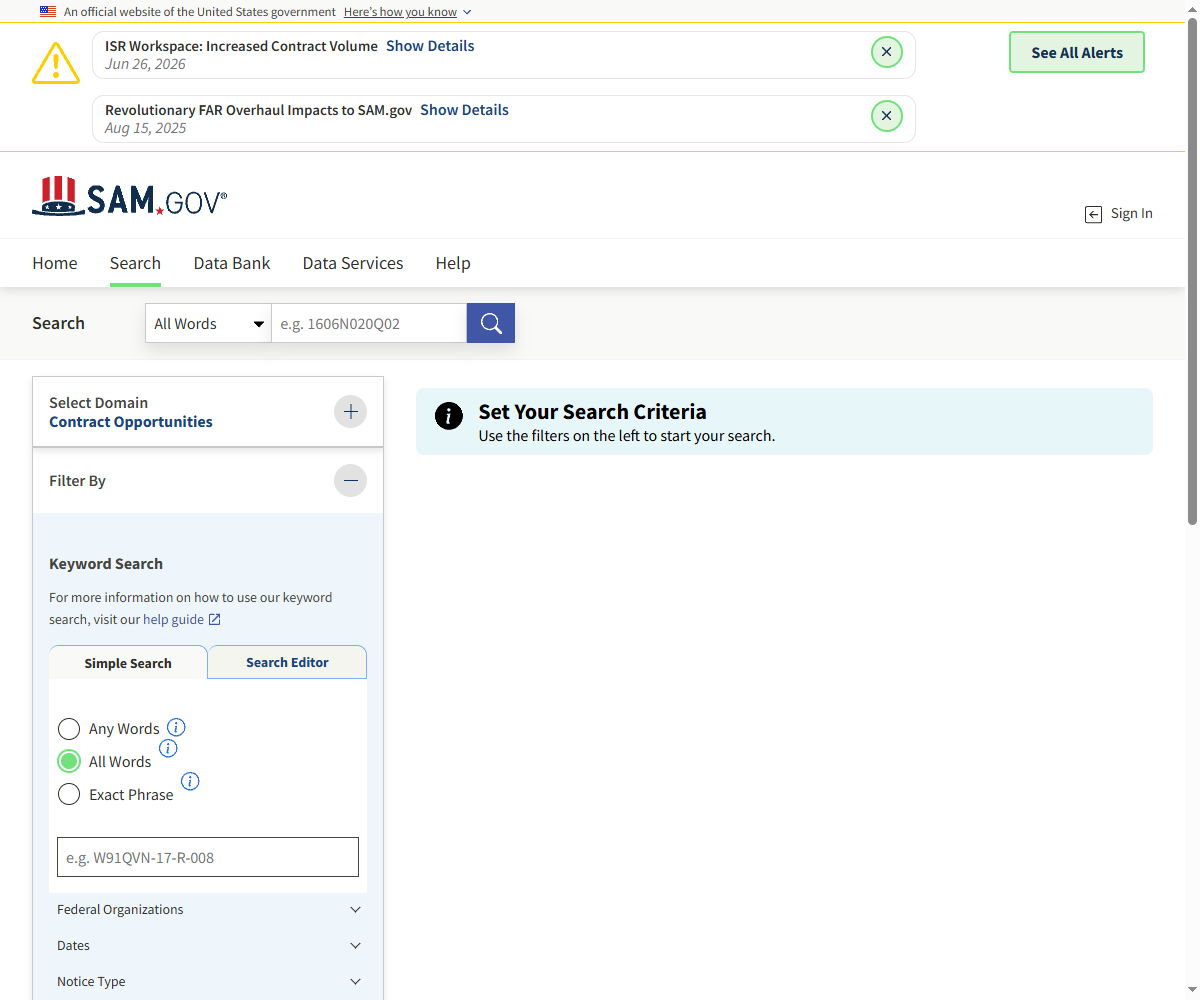
SAM.gov contract opportunities search, captured September 24, 2026.
Build a few focused searches using notice type, NAICS code, set-aside and response date. NAICS codes identify the industry assigned to a solicitation. Set-asides restrict competition to eligible small businesses or firms in a specific Small Business Administration (SBA) contracting program.
What notice types will you see?
The Notice Type filter separates market research, solicitations, awards and other notices. The Federal Service Desk explains these labels, but the notice itself tells you whether a response is requested.
| Notice type | What it is | What to do |
|---|---|---|
| Special Notice | Events such as business fairs and pre-bid conferences, requests for information (RFIs), draft solicitations | Read the ones in your field; answer RFIs you can speak to |
| Sources Sought | Market research: an agency looking for possible sources before it buys | Respond if you can do the work (how to respond) |
| Presolicitation | Notice that a solicitation may follow | Follow it and start preparing |
| Consolidate/(Substantially) Bundle | Notice that an agency intends to combine requirements into a larger contract | Watch it if it covers work you do today |
| Solicitation | The request for bids, proposals or quotations, as specified in the notice | Make your go/no-go decision |
| Combined Synopsis/Solicitation | Announcement and solicitation in one notice for commercial products or services; it may request bids, proposals or quotations | Treat the notice itself as the solicitation |
| Award Notice | Who won and for how much; posting rules vary by agency | Research the buyer, award and potential prime contractors |
| Justification | A justification for a competition exception, which may concern a contract or an order | Read the authority and scope; it is not always a sole-source award |
| Sale of Surplus Property | A notice concerning disposal or sale of government property | Usually outside a pipeline for selling products or services to agencies |
For commercial products and services, FAR 12.603 permits a combined synopsis/solicitation. The notice serves as the solicitation; do not wait for a separate document before reviewing its instructions and attachments.
How to run a search, step by step
- Open the search. On SAM.gov, select Search in the header menu, then Contract Opportunities under Contracting. If you already know a notice's ID, type it into the search box.
- Choose how keywords match. Use All Words to narrow a search, Any Words to broaden it, or Exact Phrase for a specific phrase. Try both common abbreviations and full terms, such as "IT help desk" and "information technology support." Do not assume the search will expand an abbreviation for you.
- Pick notice types. For a pursuit list, select Solicitation, Combined Synopsis/Solicitation, Presolicitation and Sources Sought. You can select several at once. Leave Award Notice out and run it as a separate research search.
- Add NAICS codes. Under Product or Service Information, select the codes that describe work you can perform. Include related codes because agencies may classify similar work differently. If your codes are not settled yet, start with how to choose NAICS codes.
- Select set-asides. Choose every set-aside type you're eligible for; the guide to small business set-asides explains who qualifies for each. Then run at least one search with no set-aside filter. That's where full and open competition shows up, which FAR 2.101 defines as letting all responsible sources compete, small firms included.
- Use place of performance when location matters. For construction and on-site services, filter by state or ZIP code. For work you can do from anywhere, leave it off.
- Filter on the response date to narrow the results to opportunities you still have time to pursue. Use published and updated dates to find new or changed notices. Confirm the exact deadline and time zone in the solicitation and its latest amendment, which may come on an SF 30 form.
- Open the notice and review its description, response deadline, set-aside, NAICS code, place of performance, attachments and contacts. Send questions about the requirement to the contact listed in the notice. The Federal Service Desk provides system support, not answers about the agency's procurement.
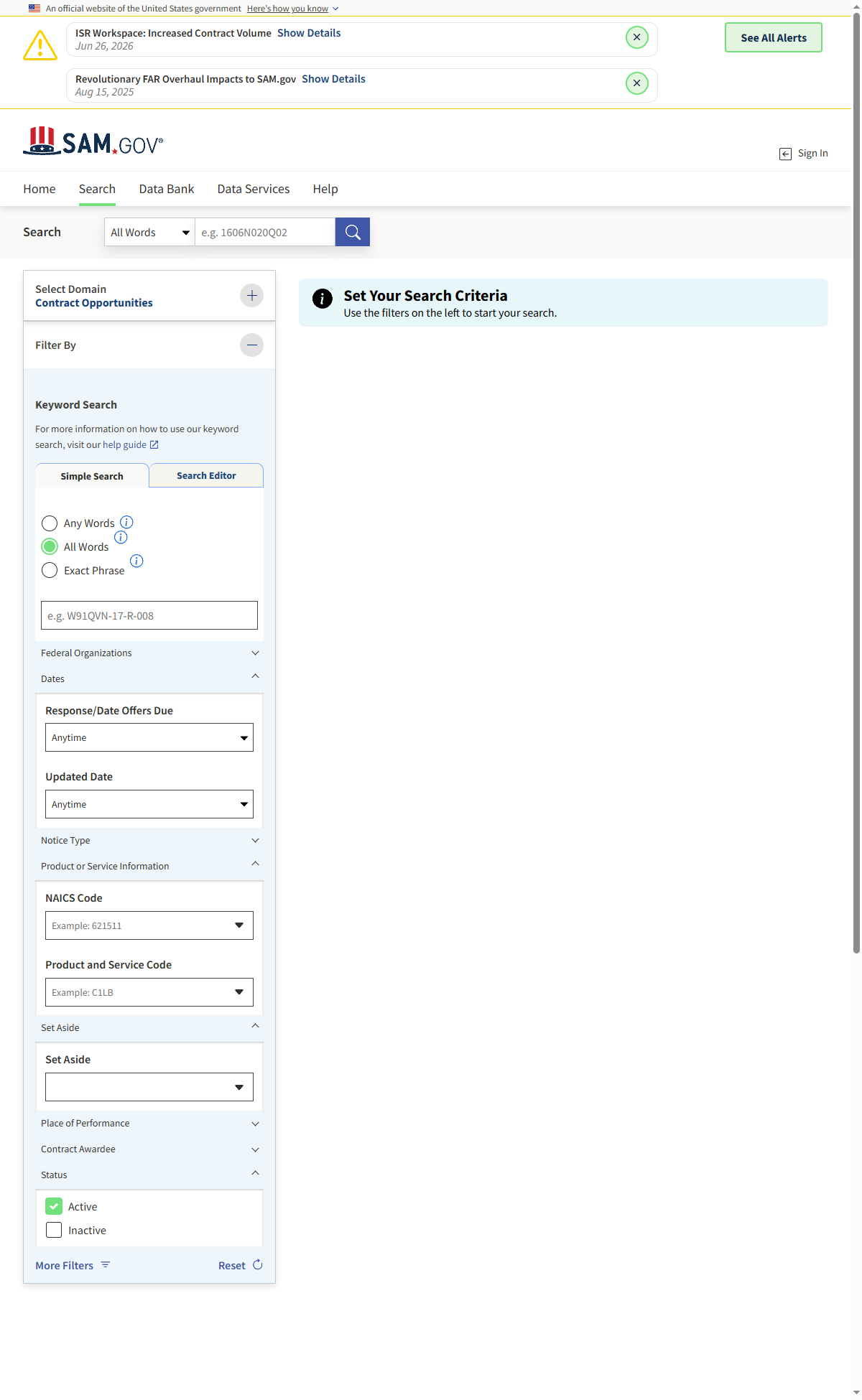
Searching SAM.gov by NAICS code
The NAICS filter sits under Product or Service Information in Contract Opportunities. Enter the six-digit codes for work you can perform, plus related codes, because agencies may classify similar work differently and the contracting officer assigns one code per acquisition. Combine the codes with a response date filter so the results show only notices you can still answer. If you are unsure which codes fit, how to choose NAICS codes walks through it.
SAM.gov contract opportunities search, captured September 24, 2026.
How do saved searches and email alerts work?
Saved searches help you find new matches. Following a notice helps you track a specific opportunity. Sign in to use both features.
A saved search tells you about new notices. Run your search, open the actions menu in the upper right corner of the results, save it and name it. Then, in your list of saved searches, turn on notifications for it. When a new contract opportunity matches, SAM.gov emails you a link to the saved search. Only Contract Opportunities searches offer this. Your saved searches are listed above the results and in your Workspace.
Following a notice helps you track changes to that opportunity, including cancellations. Review your followed records and notification settings in your Workspace. Follow notices you might pursue, and check them directly before submission in case an email is delayed or missed.
The Interested Vendors List and controlled attachments need your SAM.gov account to hold an administrator or data entry role for your company. Where an agency turns on an Interested Vendors List, you can add your company, and other vendors may be able to see who's listed. That helps when you want a teaming partner.
Controlled attachments require an access request and agency approval. Some defense notices also require JCP certification for export-controlled technical data. Follow the current DLA application instructions and the notice's access requirements, including any applicable cybersecurity prerequisites. DD Form 2345 is part of the JCP process. Start early; certification and release of a particular file are separate steps.
In GoNoGo, record a Go, Hold or No-Go decision with the reason. Move opportunities you intend to pursue through Review, Plan, Draft and Submit, keeping notes and deadlines with each pursuit.
Federal opportunities outside the public search
SAM.gov does not show every federal buying opportunity. Public notice requirements have thresholds and exceptions. Some opportunities are competed among companies that already hold a contract vehicle:
- Task and delivery orders under IDIQ contracts. An indefinite-delivery, indefinite-quantity contract allows an agency to order work within the contract's scope. Under multiple-award IDIQs, orders generally provide fair opportunity among eligible contract holders, subject to exceptions. Under a single-award IDIQ, orders go to that holder. Some notices, awards and justifications are public, but a SAM.gov search does not expose every ordering opportunity. See FAR 16.505.
- GSA Schedule orders. Agencies generally seek quotes from Schedule holders, directly or through eBuy, under the applicable Schedule ordering procedures. A public SAM.gov search will not give you access to every Schedule opportunity. You need the relevant Schedule contract or a suitable teaming or subcontracting arrangement to participate.
- The smallest purchases. Below the micro-purchase threshold, $15,000 for most buys as of October 2026, a buyer can award without asking for quotes if the price is reasonable (FAR 13.203). Winning without past performance covers how small firms reach those buyers.
Where the agency applies the FAR overhaul Part 10 deviation, market research first considers commercial products or services available through an existing governmentwide contract. Find out which vehicles your target buyers use, then assess whether to seek your own contract or work with a current holder.
If you're weighing SAM.gov's free search against paid tools, our comparison of government contract search software lays out the categories.
Searching SAM.gov for companies and exclusions
Not every SAM.gov search is for opportunities. To look up a company, change the search domain to Entity Information. Besides All, it has four views:
- Entities. Shows whether a company's registration is active and its registration details. SAM.gov requires you to sign in before searching entity records, and entities that opted out of public search do not appear. Once signed in, choose Entity Information, then Entities, and search by legal business name or CAGE code. Include Active, Inactive and ID assigned in the Entity Status filter to find a lapsed registration or a UEI-only record.
- Exclusions. Lists companies and individuals excluded from federal contracts and federal assistance. Exclusion records appeared without signing in when we checked in November 2026.
- Responsibility / Qualification. Shows records a contracting officer reviews when deciding whether a company is responsible, such as terminations for default and administrative agreements.
- Disaster Response Registry. Lists companies that offer to provide disaster or emergency response work.
How to search SAM.gov exclusions for a teaming partner or subcontractor
- Open SAM.gov Search and choose Entity Information, then Exclusions.
- Enter the company's legal name or its UEI. Use Exact Phrase for a full legal name, and try the shorter name too.
- Include Inactive records if you want to see past exclusions as well as current ones.
- Open each match. A record shows whether the excluded party is a firm or an individual, its address and UEI, and its activation and termination dates.
- Compare the UEI and address with your partner's details before you conclude it is the same company. Different companies can share a name.
- Save a dated copy of the result in your pursuit file, and check again before you sign the agreement and before you submit.
To track your own registration, sign in and use Check Entity Status. It only shows entities linked to your SAM.gov account. The UEI guide explains how to find your UEI and which entity search filters to use.
Common mistakes that hide good opportunities
- Treating Active as open for responses. A notice can remain active after its response deadline. Filter by response date and verify the latest deadline in the notice and amendments.
- Watching one six-digit NAICS code. The contracting officer generally assigns the code that best describes the principal purpose of the acquisition. Multiple-award contracts can use separate codes for distinct categories. Search related codes and use keywords as a second way to find relevant work.
- Waiting for the solicitation. Sources sought and presolicitation notices, and the agency procurement forecasts collected on Acquisition.gov, show work earlier, while there's still time to prepare.
Common questions
Does my company need to be registered in SAM.gov to bid?
Usually, if you are submitting an offer or quote as the prime. FAR 52.204-7 generally requires active registration at submission and award. FAR 52.204-13 requires it during performance and through final payment. Keep it active throughout the process to avoid unnecessary problems. The UEI guide shows how to check your registration.
Can I find subcontracting opportunities on SAM.gov?
SAM.gov is mainly a source for federal agency notices, not a dedicated subcontracting marketplace. Use its award data and Interested Vendors Lists to identify potential primes, and check SBA's SubNet and the primes' own supplier pages for subcontracting opportunities.
Why did a notice disappear from my results?
It may have become inactive, been canceled, or stopped matching your filters after an update. Search by notice ID and include inactive records. A missing result does not establish that the requirement has disappeared.
FAR references: During the Revolutionary FAR Overhaul, check the solicitation and the agency's effective deviations to identify the applicable text. The FAR overhaul deviation guide links to the model text and agency actions. Ask the contracting officer to clarify any conflict before the applicable deadline.
Sources
- SAM.gov: Contract Opportunities; Entity Information search; Check Entity Status; Entity Registration; Army notice requiring JCP certification for controlled attachments (2025 C5ISR Industry Expo)
- Federal Service Desk: KB0020252, notice types; KB0029688, searching Contract Opportunities; KB0029889, saving a search; KB0051519, saved search notifications; KB0017560, following items; KB0020241, controlled attachments
- FAR on acquisition.gov: 2.101, 4.1102, 8.404, 8.405-2, 12.603, 13.203, 16.505, 19.102
- Revolutionary FAR Overhaul on acquisition.gov: Part 4, Part 5, Part 10, Part 12, Part 19
- Acquisition.gov: Agency Recurring Procurement Forecasts
- GSA: Vendor Support Center, GSA eBuy; Register your business
- SBA: Prime and subcontracting (SubNet)
- Defense Logistics Agency: Joint Certification Program (JCP)